SHINNING / GUIDE
Gemini AI Pro activation guide
Four steps cover account setup, activation and verification, followed by a separate failure guide. If your current 2FA key works and 2-Step Verification is on, continue to submission.
- Gemini Pro · 6 / 12 / 24 months
- YouTube Premium · 1 month
- Gemini 4 Argon · Flagship reasoning model
Actual features and limits depend on your Google account. Antigravity access is not guaranteed.
Chapters and illustrations
BEFORE YOU START
Prepare your Google account
- No active subscription or family group
Check Gemini, Google One and shared family plans. Canceling renewal does not end an unexpired subscription.
- Review the impact before closing payment profiles
Review the impact below before changing other services.
- Supported region and verified age
Your account region must support the relevant Google AI benefit and any required age verification must be complete. Individual features can have additional eligibility requirements.
- Working password and configured authenticator
Confirm you can sign in to your Google account. Have the current password and an active authenticator setup key ready. Resolve sign-in or identity-verification problems with Google first.
Closing a payment profile cannot be undone
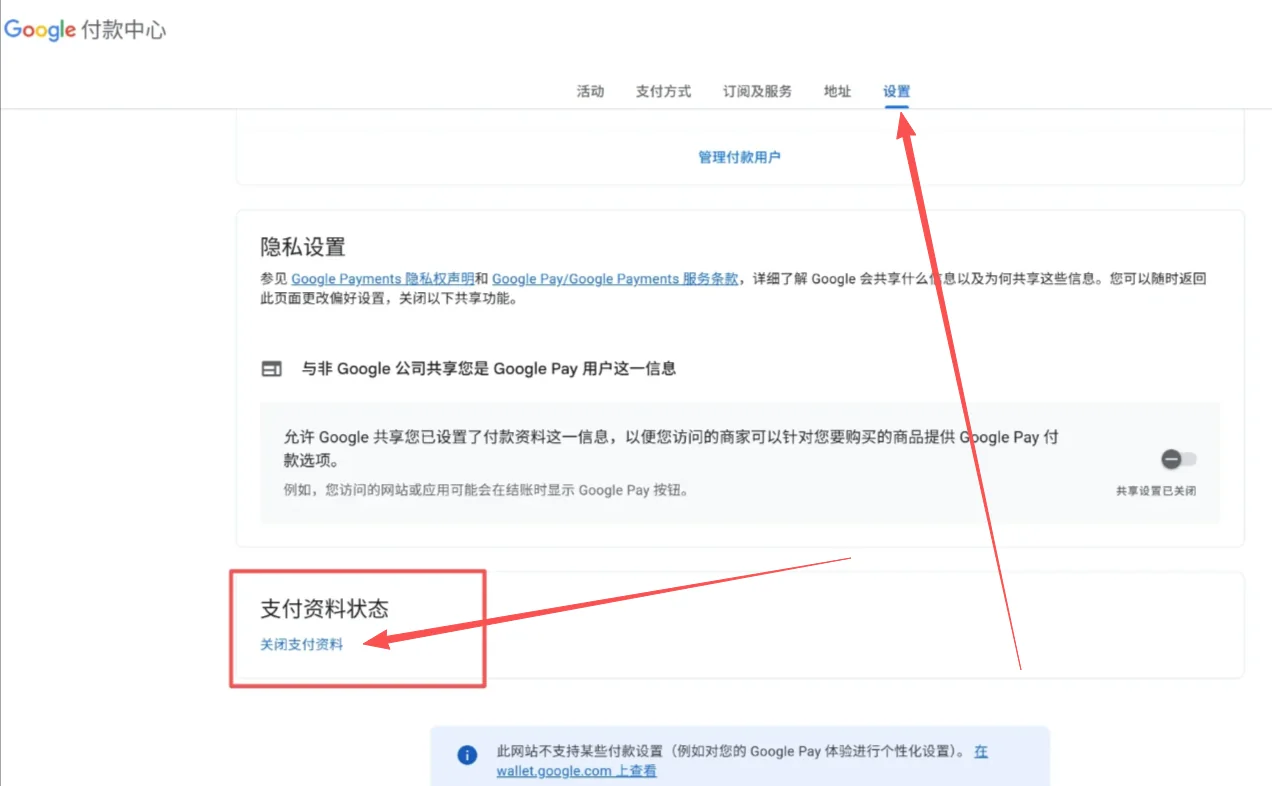
This activation method requires existing Google payment profiles to be closed. Closing permanently removes their payment and transaction information and cannot be undone. Review effects on your other services first.
- Open payment settings while signed in to the Google account being activated.
- Choose Settings and find Payments profile status near the bottom.
- After reviewing the impact, choose Close payments profile and follow Google’s confirmation steps.
EIGHT ILLUSTRATED STEPS
Prepare the key and enable 2-Step Verification
Base32 · A–Z / 2–7 · at least 16 characters
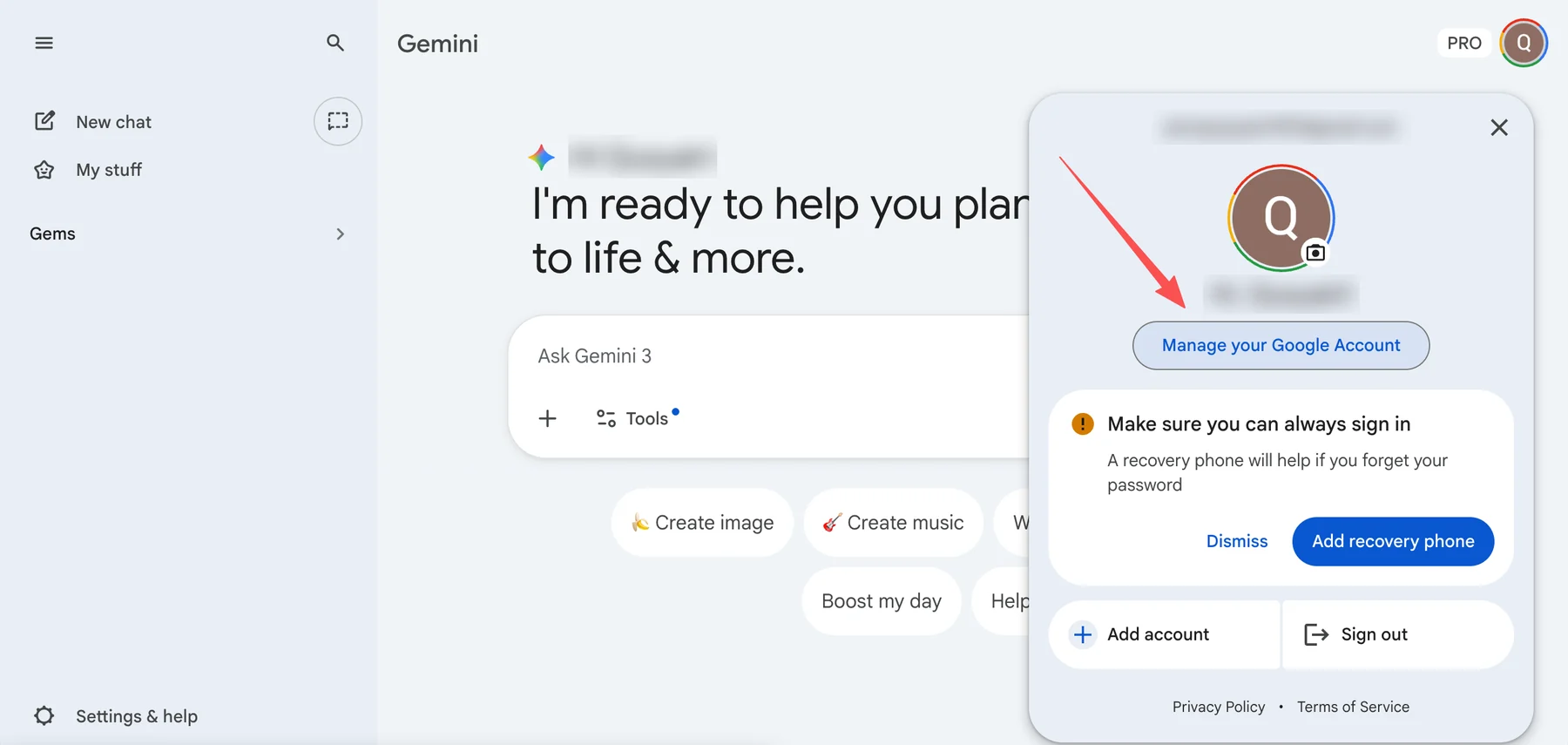
2.1Open Google Account management
Select your profile picture on Gemini, then “Manage your Google Account”.
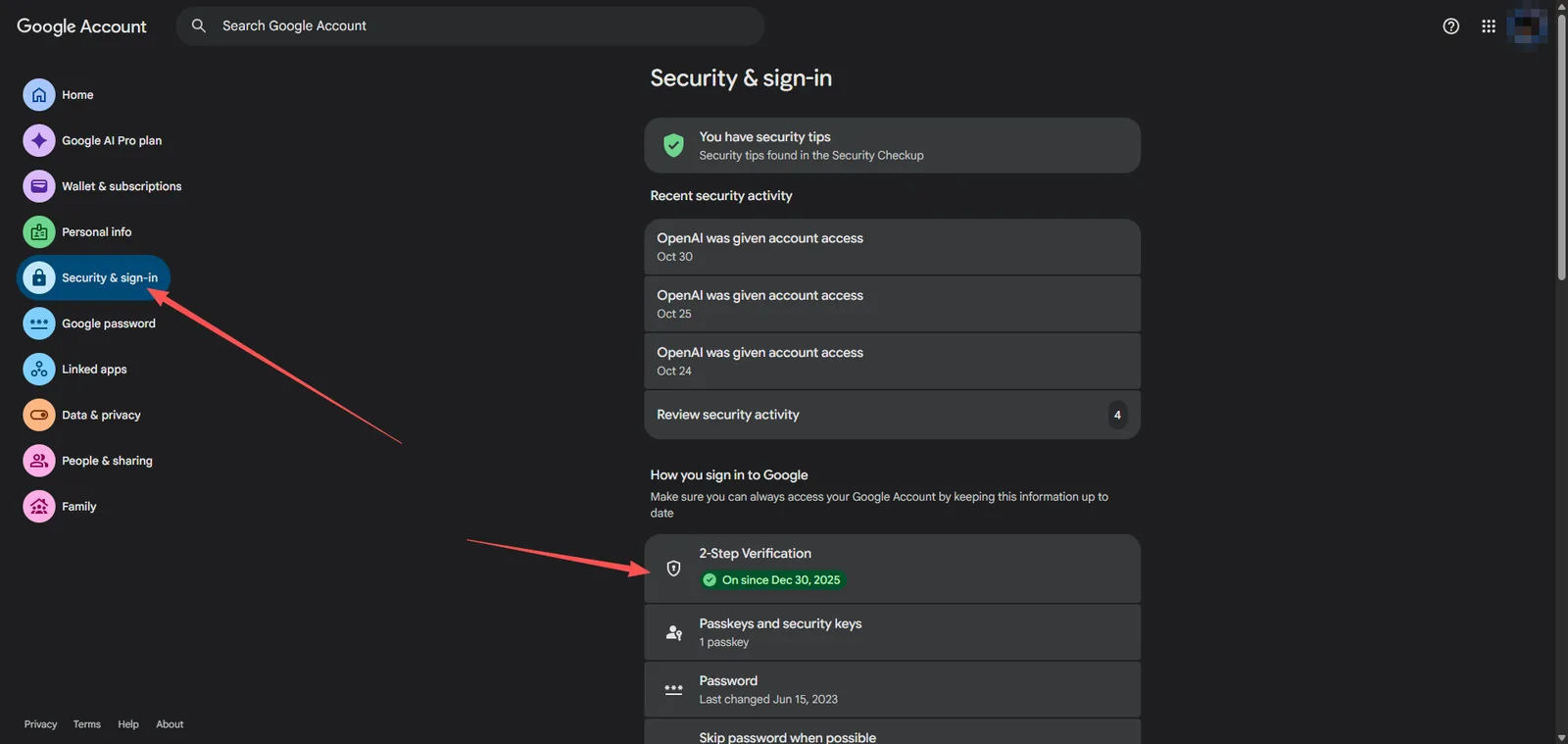
2.2Open “2-Step Verification”
Under Security & sign-in, open 2-Step Verification. Setting up an authenticator alone does not confirm that 2-Step Verification is turned on.
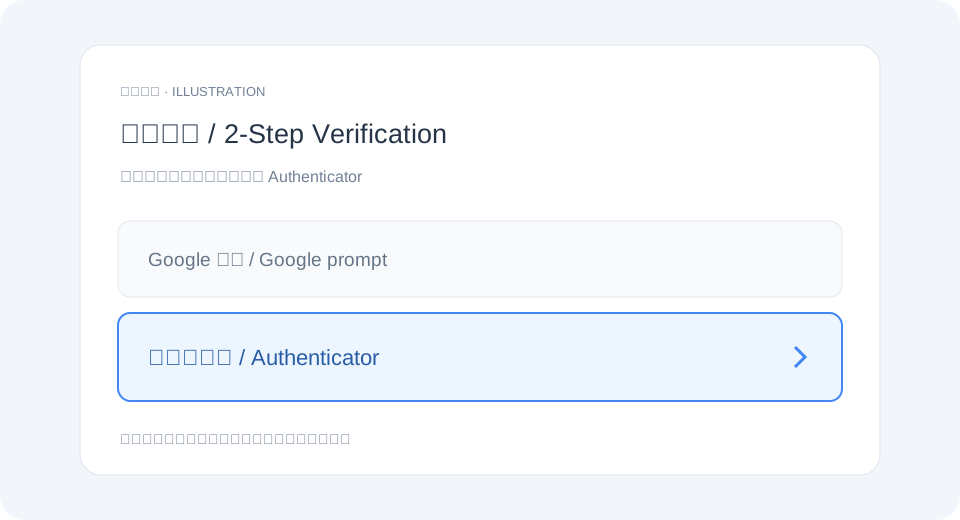
2.3Find “Authenticator”
Choose Authenticator in the list of second-step sign-in methods. Labels may vary with language and account settings.
2.4Check the current key or set up again
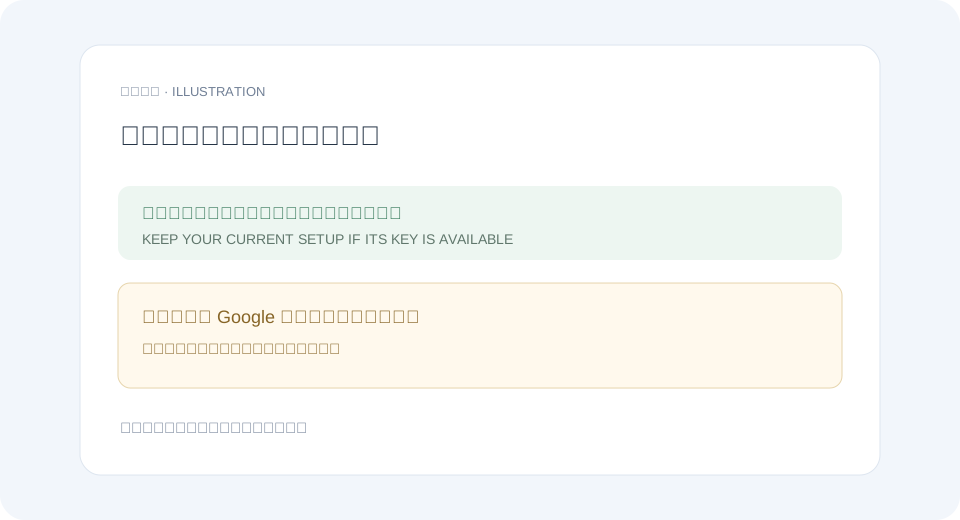
Keep the current setup if you have its working key. If the key is unavailable, first retain another working sign-in method, then follow Google’s change or removal flow and set up again. Do not reuse an obsolete key.
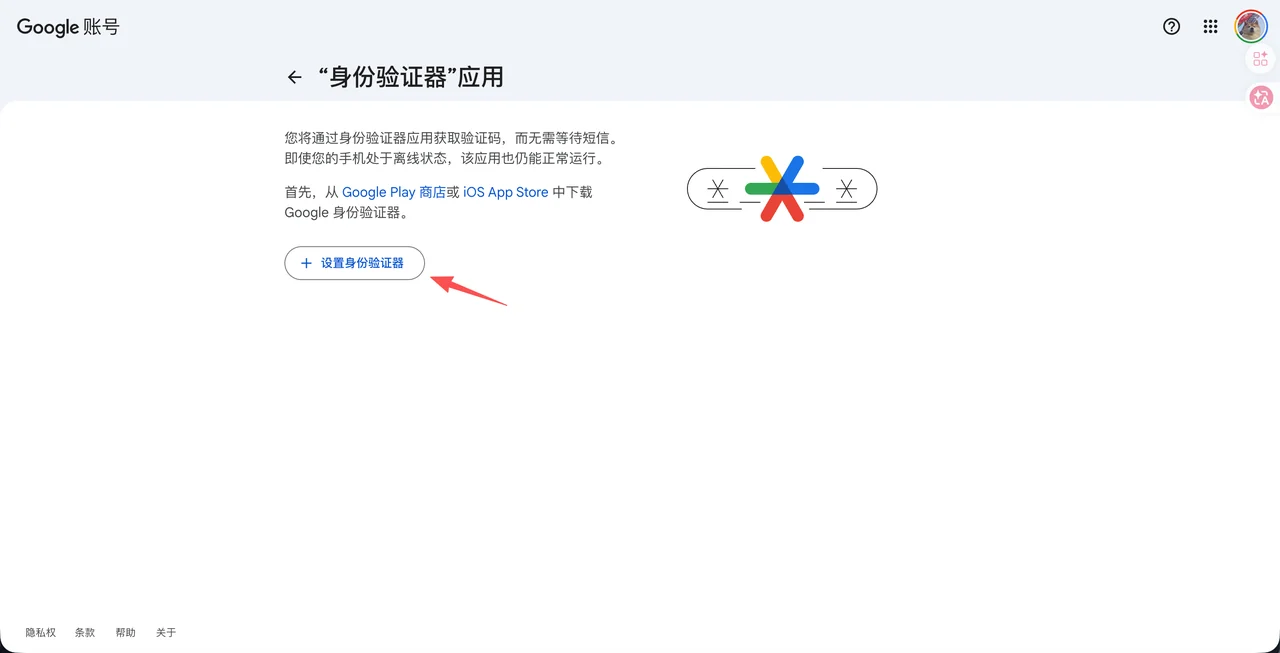
2.5Set up the authenticator
Choose “Set up authenticator”. If an existing setup key is unavailable, follow Google’s current change or setup flow, keeping another working sign-in method available.
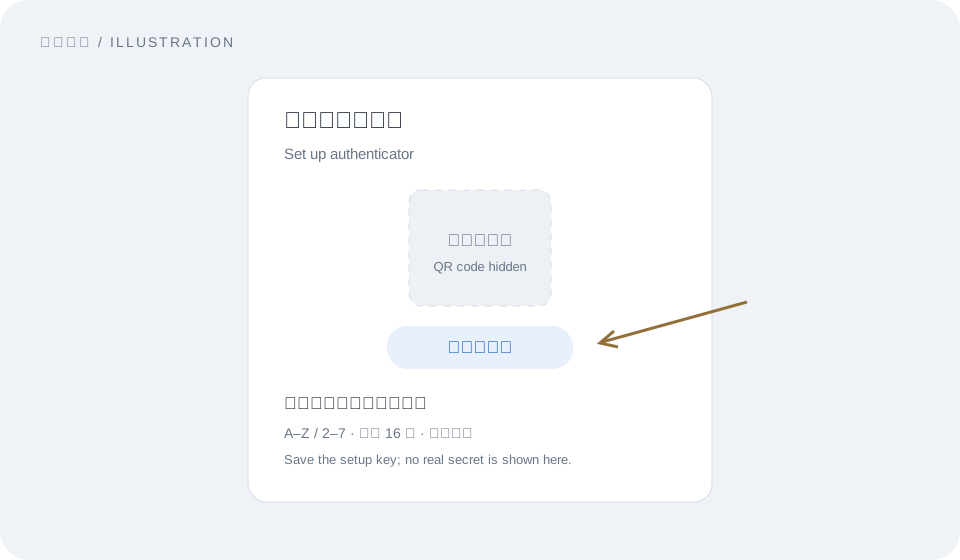
2.6View and save the setup key
When the QR code appears, select “Can’t scan it?” and save the displayed setup key securely. It uses A–Z and 2–7, with at least 16 characters; omit spaces. Configure that key in Google Authenticator, or scan the same QR code.
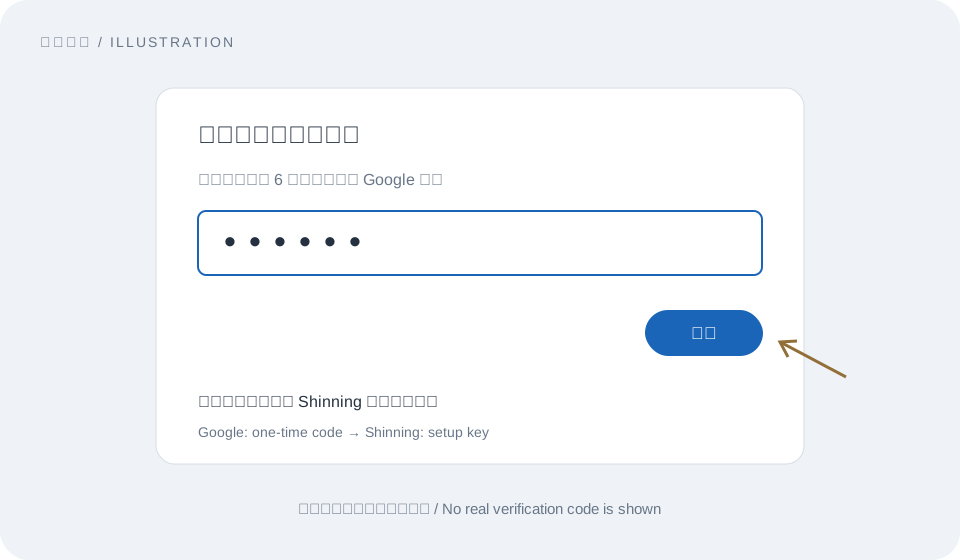
2.7Finish Google verification, then return
Enter the current six-digit authenticator code on Google’s setup page and select “Verify”. Once the authenticator is active, return to Shinning. Our activation form requires the saved setup key.
2.8Confirm 2-Step Verification is on
Return to 2-Step Verification. A “Turn off 2-Step Verification” button means it is already on; do not turn it off. If “Turn on” is shown, finish enabling it. An incomplete setup can cause “Authenticator not found”.
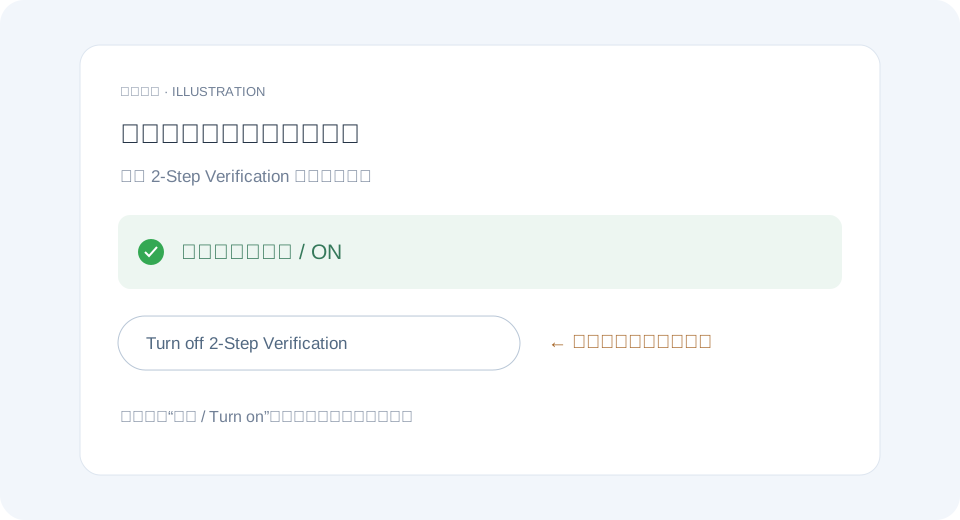
① Enter a current code on Google and click Verify. ② Confirm 2-Step Verification is on. Copying the key alone does not finish setup.
REVIEW, THEN SUBMIT ONCE
Enter activation details and submit
- Activation code
- Enter the Gemini code you received and check the detected 6-, 12- or 24-month plan.
- Google email and password
- Use the account to activate and its current working password.
- 2FA setup key
- Enter the saved Base32 setup key, not a six-digit one-time code or a backup code. Keep it securely yourself. We do not retain the key or provide lookup, restoration or recovery of lost secrets.
- Recovery email
- Optional; leave blank if unavailable. Review the details and consent before submitting once.
Keep checking the original task
Do not resubmit or switch codes while processing, after a timeout or when the result is unconfirmed. Retry only when the page explicitly permits it.
For the activation task you just intentionally submitted, no manual number selection is required. Track the original result instead of resubmitting. Do not approve an unrelated sign-in request.
VERIFY ON YOUR ACCOUNT
Verify subscription and account settings
- 1
Sign in to the same Google account and check the plan, status and dates under Google Play subscriptions. A next-renewal date alone does not establish the full service term; retain the activation record and contact support if details differ.
- 2
Review Google payment settings again. If a payment profile remains, assess its effect on your other Google services before following the preparation requirement.
- 3
After the result is confirmed, change your password and update 2FA, keeping the new sign-in and recovery methods securely. Do not share passwords, setup keys or QR codes in chats, screenshots or public pages.
If you see these messages
Processing, timeout or unconfirmed result
Check the original activation record and retain that task. Do not resubmit or switch to another code while waiting. Completion time depends on actual processing.
Wrong key or authenticator unavailable
Use the current setup key, not a six-digit code. Select “Verify” on Google and confirm that 2-Step Verification is on. A newly configured authenticator may not immediately become an available sign-in method.
No checkout window detected
Check for unexpired subscriptions, family membership and the payment-profile requirement in step 1. Canceling renewal does not end an active subscription.
Google cannot verify your identity
Complete Google’s account verification first. Retry corrected details only after the original task has explicitly failed and the page confirms the code can be used again.
FIND THE MATCHING MESSAGE
If activation fails
Read the reason in your activation progress, then follow the matching instructions. Resubmit corrected details with the same code only after a confirmed failure and explicit code reusability. Keep checking the original task while its result is unconfirmed.
Service and connection
Check this record before deciding whether to retry.
Processing timeout, network issue or busy service
These messages alone do not establish an account problem or prove the request was not accepted.
What to doRefresh this record first. Recheck the original code only when the result is explicitly failed, its activation credit is restored and retry is available. While pending or processing, wait without resubmitting.
Account preparation and settings
Complete the relevant setup, then follow the status shown.
Incorrect 2FA secret or verification code mismatch
The secret may not match the current authenticator, or a six-digit temporary code may have been entered instead.
What to doReview the authenticator in your Google account, keep the correct Base32 secret, and complete code verification. The activation form requires the secret, not a six-digit code or backup code.
Open the illustrated steps ↗Authenticator option not found
Authenticator setup may not be verified yet, or two-step verification may still be off.
What to doFinish the authenticator verification step, then confirm two-step verification is on. A “Turn off 2-Step Verification” button means it is already on; leave it enabled.
Open the illustrated steps ↗Checkout window not detected
An existing subscription may not have fully ended, or a Google payments profile may still be open.
What to doCheck that there is no active subscription or family-group membership, then review and close the payments profile as instructed. Understand the effect on related payment services before confirming.
Open the illustrated steps ↗Google account verification
First resolve the verification requested by Google's own sign-in page.
Phone verification, phone details or additional identity verification required
Common messages include “phone verification required”, “missing phone context”, “unable to verify ownership” or “Couldn't verify it's you”. Google's sign-in verification must be completed before activation can continue.
What to doComplete phone or identity verification on Google's official sign-in page first. If the account still cannot be used, choose another eligible account only after this task is explicitly failed, activation credit is restored and retry is available. Do not switch accounts or codes while the result remains unconfirmed.
When ready, return to activation and use the same code you received.